How to Record Meetings, Go Off the Record, and Manage Consent with Fellow
•
5
MIN READ
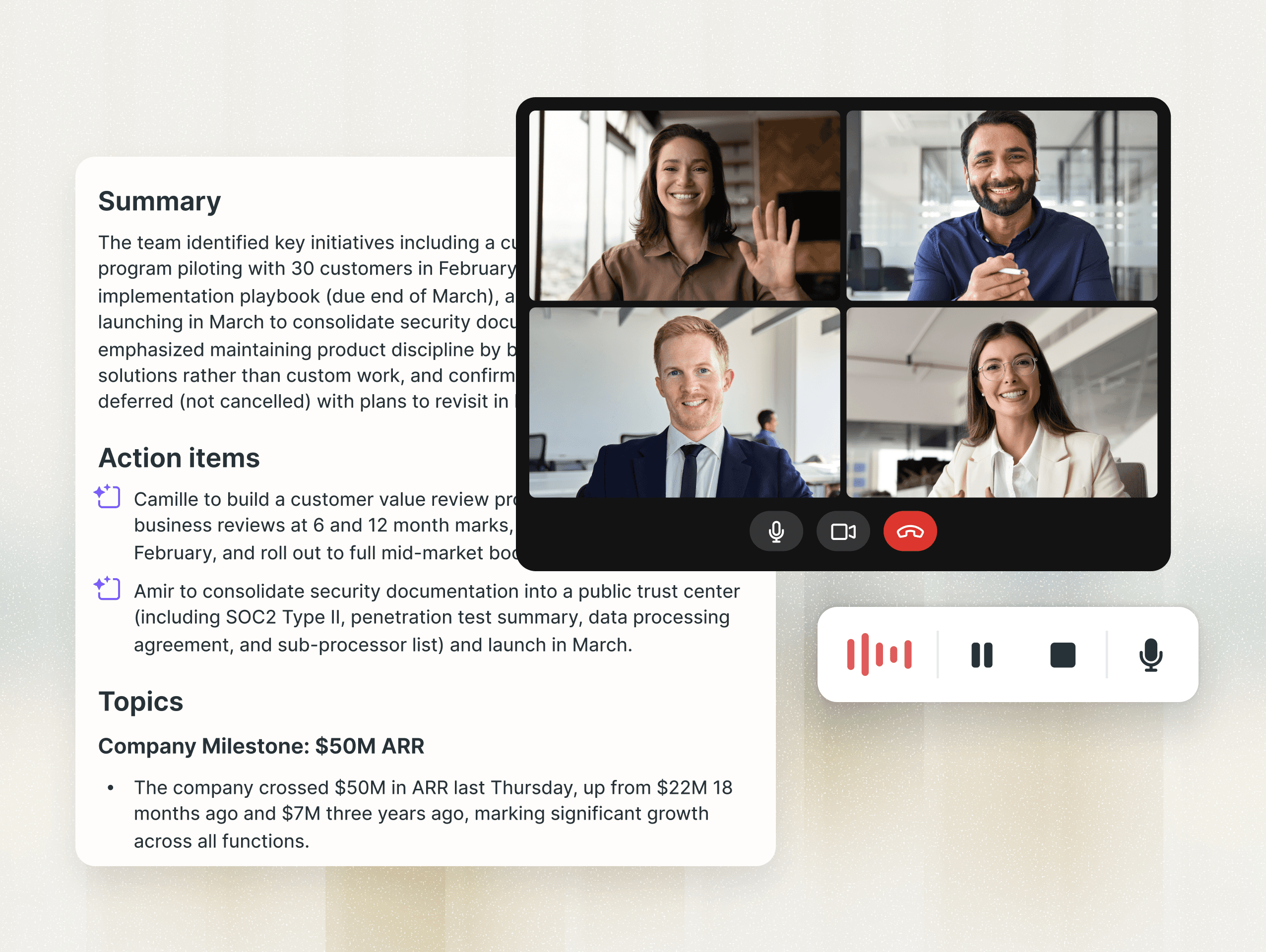
AI Summary by Fellow
Every meeting your team has produces something worth keeping: a decision made, a direction agreed on, a commitment given. But capturing that value consistently — across scheduled calls, spontaneous video chats, and in-person conversations — has historically required the right tool to be in the right place at the right time. Fellow is designed to make that a non-issue.
Fellow gives you multiple ways to record your meetings so that every conversation can be captured on your terms. Each method delivers the same result: a full AI-generated recap that includes a transcript, summary, action items, decisions, and topics, all saved directly to your meeting note. This post walks through those methods, how to start a recording from within the app, and what you can expect during and after the meeting.
The four ways to record meetings with Fellow
Not every meeting looks the same, and Fellow's recording options reflect that. Whether you're running a structured weekly sync across time zones or jumping into a quick call over Slack, there's a recording method built for your situation.
Note Taker Bot
The Note Taker is Fellow's most full-featured recording option. It joins your meeting as a visible participant — visible to everyone in the call — and handles the full capture from there. It records faces, shared screens, and audio, then automatically generates a video recording, transcript, and AI-generated summary once the call ends.
The Note Taker works across Google Meet, Zoom, and Microsoft Teams, and requires minimal setup to get running. It's the natural choice for scheduled meetings across platforms where a complete video record of the conversation is the goal.
Desktop Botless Recording
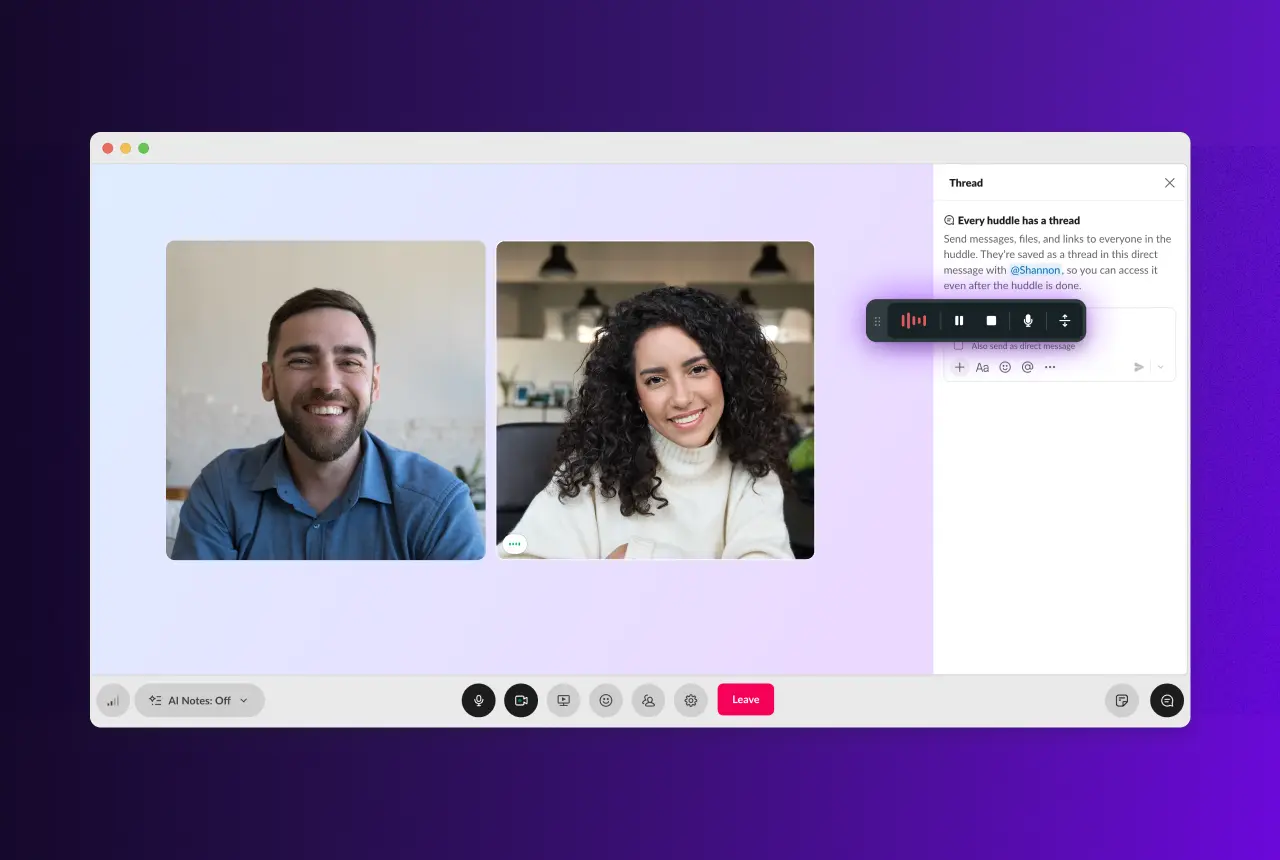
Desktop Botless Recording gives you the full intelligence of Fellow's AI recap without any bot appearing in the call. Recording happens directly from Fellow's desktop app, quietly in the background, capturing audio without inserting a visible participant into the session.
Because it works at the system level rather than through a meeting platform's own infrastructure, Desktop Botless supports any platform — Zoom, Google Meet, Microsoft Teams, Slack Huddles, and even in-person or hybrid meetings. You'll need the Fellow desktop app installed and the relevant permissions enabled, but once that's in place, starting a recording is a single click. It's the right fit for teams who want a subtler recording experience, for impromptu calls that weren't on the calendar, or for situations where audio-only capture is all you need.
Zoom Native Capture
Zoom Native Capture is purpose-built for teams that live in Zoom. It lets Fellow record your Zoom meetings through Zoom's own infrastructure, which means no bot joins as a participant and the recording happens entirely behind the scenes. It's available at both the individual user and workspace admin levels.
Getting it running requires a few prerequisites: a paid Fellow workspace, a paid Zoom account, host permissions for the meetings you want to record, the Zoom desktop app installed, and the "Share realtime meeting content with apps" setting enabled in Zoom. It's worth the setup for teams that run most of their meetings on Zoom and want a completely seamless, invisible recording experience.
Mobile Recording
Mobile Recording is Fellow's answer for moments when your laptop isn't in the room. It lets you capture meetings directly from the Fellow iOS app — your phone handles the audio, and Fellow automatically generates a transcript, AI summary, and action items once the recording ends.
This is especially useful for in-person meetings, site visits, or any call where pulling out a laptop isn't practical. Like the other botless methods, no bot joins the call. It's available now on iOS, with Android support on the way.
How to start a recording in Fellow
Once you know which recording method fits your needs, starting a recording in Fellow is straightforward. There are a few different places in the app where you can kick one off, depending on where you are when the meeting begins.
Starting from the red microphone button
The most direct entry point is the red microphone button in the bottom left-hand corner of the Fellow app. Clicking it opens a menu with a couple of recording options.
Record Now (Botless)
Selecting "Record Now Botless" instantly starts a botless recording from your laptop. There's no configuration step and no waiting — Fellow begins capturing audio immediately. The same option is available in the Fellow mobile app, so you can start a botless recording from your phone just as easily.
Record via Link
Selecting "Record via Link" opens a field where you paste in any conference call URL — a Google Meet link, a Zoom URL, or a Teams link. From there, the Note Taker bot joins the call to record audio, video, and take notes on your behalf. Before recording begins, Fellow will show you a confirmation step, which is covered in more detail in the next section.
Starting from the Library View
If you have the Library view open from the left-hand panel, you have the same recording options available from there. You can start a botless recording, paste a link to send the Note Taker in, or upload an existing meeting recording directly to Fellow.
Starting from a Channel
If you're working inside a specific channel in Fellow, you can initiate a recording from that view as well. The channel recording menu offers the same three paths: botless, via link, or upload. Recordings started from a channel will be associated with that channel's context, keeping your recaps organized where they belong.
How Fellow prevents you from recording the wrong meeting
Recording the wrong meeting is one of those mistakes that looks small in the moment and feels much larger afterward. If a sensitive conversation ends up attached to the wrong calendar event, or a recording is shared with a group of attendees who were never in the room, the fallout can range from awkward to genuinely problematic.
Fellow addresses this with a set of confirmation steps that catch the mistake before it happens.
The wrong meeting recording warning
When you initiate a recording in Fellow, the system checks whether the meeting you've selected is actually the one currently in progress. If it detects a mismatch — either because you're looking at the wrong occurrence of a recurring meeting, or because the meeting you've selected isn't currently taking place at all — it surfaces a warning and asks you to confirm before anything is recorded.
This is particularly relevant for recurring meetings. It's easy to have last week's or next week's occurrence open in your notes view while the current session is running. Fellow's warning catches that discrepancy automatically, so your recap ends up attached to the right instance in your history. The warning doesn't block you from proceeding — if you review the message and still want to go ahead, you can confirm and recording will start as expected.
Confirmation when recording via link
The same principle applies when you use "Record via Link." When you paste a conference URL into Fellow, the system scans your connected calendar events looking for any event that contains that same URL. If it finds a match, it now pauses before doing anything else and shows you exactly which event it found — so you know precisely which recap this recording will be attached to and which attendees will be associated with it.
From that confirmation screen, you have two paths. You can confirm the match, and Fellow proceeds exactly as before, attaching the recap to that calendar event with its full attendee list. Or, if the match isn't right — maybe the same persistent Zoom link appears across multiple calendar events, or the call was shared informally and shouldn't be attached to any existing event — you can choose to create a new note instead. That new note starts completely fresh, with no pre-populated attendees, giving you a clean record that lives on its own.
If Fellow doesn't find any matching calendar event at all, it will let you know and route you directly toward creating a new standalone note.
Auto-recording: Having Fellow join automatically
For teams with recurring meetings that should always be captured, Fellow supports auto-recording. This lets you configure specific meetings — or entire recurring series — so that the Note Taker automatically attempts to join when the meeting starts, without you having to manually trigger the recording each time.
Auto-recording is available for bot-based recordings. When a meeting begins, Fellow will try to join. But there's an important safeguard built into this flow: Fellow will never automatically enter a meeting without being admitted. Someone on the call always needs to let the Note Taker in. This ensures that nothing is ever accidentally recorded when it shouldn't be, and that every participant in the call has full visibility into the fact that recording is taking place.
Capture consent for auto-recorded meetings in Microsoft Teams
For organizations running meetings in Microsoft Teams, Fellow offers an additional layer of consent management for auto-recorded meetings. When the capture consent feature is enabled at the workspace level, Fellow takes over the Teams meeting link entirely, replacing it with a Fellow-hosted consent page in the calendar event.
Here's how it works in practice. One hour before a scheduled meeting, Fellow swaps the Teams link in the calendar event with a consent URL and removes the native join button. When attendees click that link to join, they land on a page that explains the meeting will be recorded. They're given a clear choice: agree to be recorded and join normally, or request not to be recorded.
If an attendee agrees, they're redirected to the original Teams link and join the meeting as usual. If they decline, they're prompted to enter their email, their decision is logged, and they're asked to mute their microphone and turn off their camera. Throughout this, the meeting organizer sees a real-time warning in the recording controls showing exactly which attendees have declined consent.
Workspace admins can enable this setting once and have it apply automatically across the organization. Admins can also allow individual users to toggle consent on or off for specific meeting series, giving teams the flexibility to apply it where it matters most.
During the meeting: Going off the record
Once a meeting is being recorded, you're never locked in. Regardless of which recording method you're using — bot or botless — you always have the ability to pause the recording at any point and resume it whenever you're ready.
When you hit pause, everyone in the meeting has visibility into the fact that recording has been paused. You can go off the record as many times as you need to without starting a new recording, and every pause point is logged on the playback timeline. Whether the recording is audio or video, you'll be able to see exactly where it was paused when you review it after the meeting.
If you weren't able to pause in the moment and you want to remove a sensitive section after the fact, Fellow also gives you the ability to redact information once the meeting has ended. Redacted points are logged on the timeline alongside any pause points, so the record of what was and wasn't captured remains transparent and complete.
After the meeting: Your AI recap
Once the meeting ends, your recap will appear in the meeting note within a few minutes, regardless of which recording method you used. Opening the AI Recap in Fellow gives you access to the full recording and transcript, as well as an AI-generated summary that covers key topics, decisions made, and suggested action items you can review and check off directly from within the note. From there, you can share the recap via email or publish it to a Fellow channel to keep the right people informed.
All recordings are also saved to the Meeting Recordings Library, where you can search and filter across all of your past meetings in one place.
Frequently asked questions about recording meetings in Fellow
Do I need to choose one recording method for all my meetings?
No. You can use different methods for different meetings depending on your setup. If you want consistency, you can set a preferred recording method in your user settings under Note Taker, and Fellow will default to that method wherever it's applicable.
Can I use botless recording on any video platform?
Yes. Desktop Botless Recording works on any meeting platform, including Zoom, Google Meet, Microsoft Teams, Slack Huddles, and more. It's also well-suited for in-person and hybrid meetings where no video conferencing platform is involved at all.
Will Fellow ever join my meeting without me knowing?
No. Even when auto-recording is enabled for a meeting, someone on the call must actively admit the Note Taker before it joins. Fellow will never automatically enter a meeting, which ensures that every recording is intentional and that all participants have visibility into the fact that it's happening.
What happens if I record the wrong meeting occurrence?
Fellow's wrong meeting recording warning is specifically designed to prevent this from happening. If you try to record an occurrence that doesn't match the active session, Fellow will surface a confirmation prompt before anything is captured. If you proceed past the warning and record the wrong occurrence anyway, the recording and transcript will be attached to the meeting you selected — which is exactly the outcome the safeguard is trying to help you avoid.
Can attendees tell when a meeting is being recorded in Fellow?
Yes. Regardless of which recording method is in use, all internal participants have visibility into the fact that a recording is in progress, as well as any pause or resume actions that occur during the meeting. This applies to both bot and botless recordings.
What can I do if a sensitive conversation was captured that shouldn't have been?
If you weren't able to pause during a sensitive moment in the meeting, you can redact that section after the meeting ends from within the recording playback. Redacted points are logged on the recording timeline, so the record of what was removed remains visible and auditable.
Record, transcribe and summarize every meeting with the only AI meeting assistant built with privacy and security in mind.