Unlocking the Power of Meeting Data: A Guide to Fellow's AI Connectors
•
5
MIN READ

AI Summary by Fellow
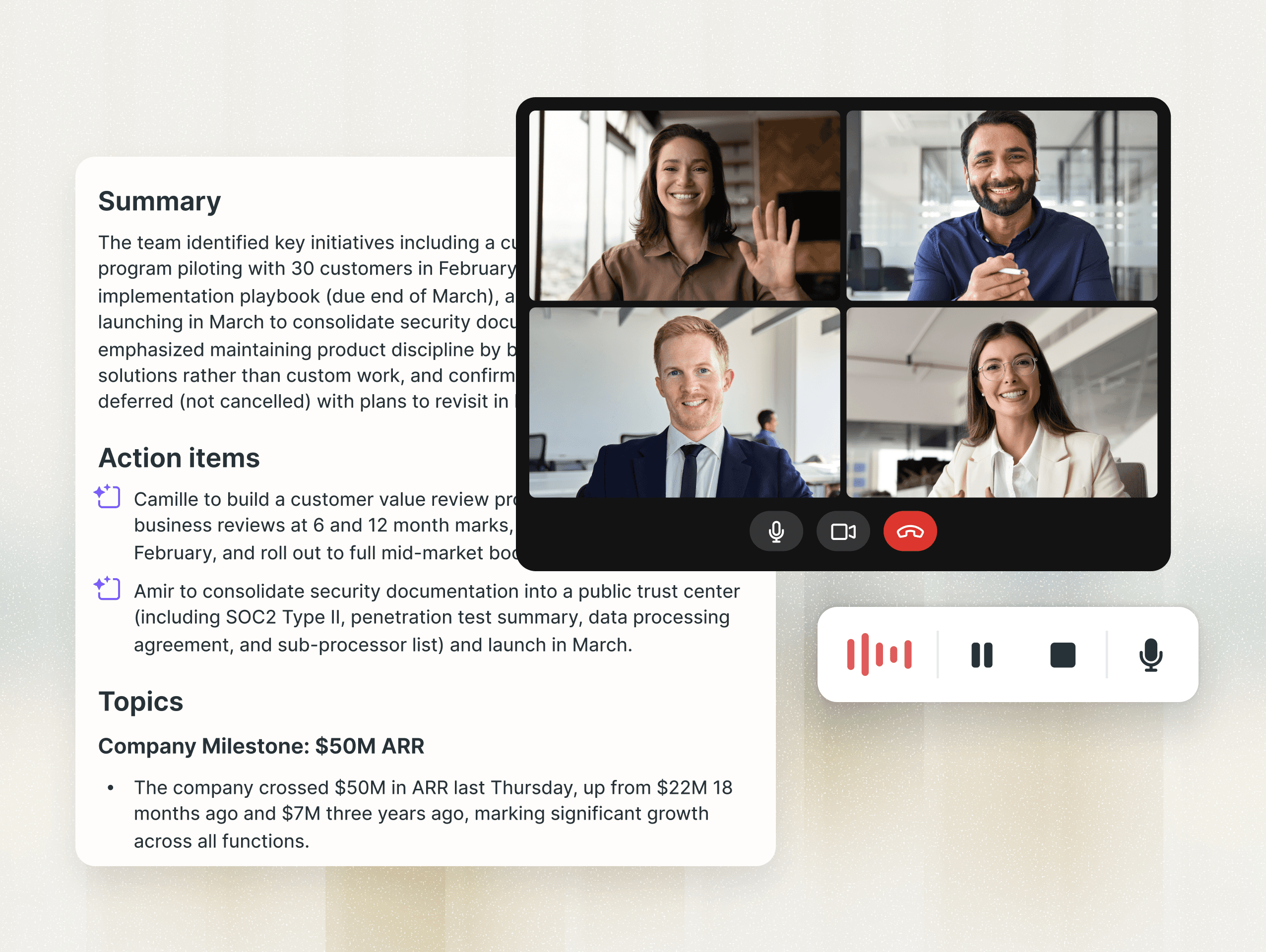
Meeting data is one of your organization's most valuable assets, yet it often remains siloed and underutilized. Fellow's AI connectors change that by bridging the gap between your meeting intelligence and powerful AI tools like Claude, ChatGPT, and Microsoft Copilot. This guide will show you how to unlock that potential and transform how you work.
Understanding the AI connector ecosystem
Fellow's AI capabilities work on two levels, each serving distinct purposes. Ask Fellow operates within the platform itself, providing fast, precise answers drawn exclusively from your meeting data. It's purpose-built for tasks like drafting follow-up emails, surfacing action items, and building agendas.
AI connectors, on the other hand, extend your reach beyond meetings. When you connect Fellow to Claude or another large language model through the MCP (Model Context Protocol) server, you gain the ability to pull context from multiple tools simultaneously. Your CRM data, Slack conversations, and Fellow meeting recaps can all inform a single AI-generated output.
This distinction matters. If your answer lives entirely within your meetings, Ask Fellow will serve you faster and won't consume tokens from your external AI tool. But when you need to connect dots across platforms, that's when the connector becomes invaluable.
The foundation: prompting best practices
AI tools are only as effective as the prompts you give them. Most people open Claude or ChatGPT and type something generic like "summarize my meetings," then wonder why the output feels flat or irrelevant. The problem isn't the AI. It's the lack of context.
Set the point of view
Always tell the AI who it is or who you are. Instead of asking for a summary, try this:
"You are a customer success manager focused on identifying at-risk accounts. Review my last three customer calls, surface any concerns, objections, or signals that suggest a customer may be struggling."
The output you receive will be dramatically different because you've given the AI a lens through which to interpret the data.
Think backwards from your goal
Before you type anything, ask yourself what you're going to do with the information. Are you writing a follow-up email? Updating your CRM? Briefing someone who missed the meeting? The AI will deliver more useful results when you state your end goal upfront.
Instead of "Summarize this meeting," try "Summarize this meeting so I can send a follow-up email to the client highlighting the next steps we agreed upon."
Be specific about data sources and format
When using AI connectors, explicitly name the tools you want the AI to pull from. Specify time frames. Describe the format you want the output to take. The more specific you are upfront, the better your first result will be.
Use case 1: Complete customer intelligence across tools
One of the most powerful applications of AI connectors is building a complete picture of a customer segment or set of prospects. Your CRM holds quantitative data like deal size, pipeline stage, and ARR. But it doesn't capture the nuance that lives in your Fellow meeting recaps: the actual conversations, the objections, the things customers said that reveal how they really feel.
Add Slack to the mix, where real-time signals and team discussions happen, and you have three sources of truth that rarely speak to each other. Until now.
Here's a prompt that brings them together:
"You are a customer success manager. Using my Fellow meeting recaps from the last 30 days, my HubSpot CRM data, and my relevant Slack channels, give me an overview of our SMB segment. Where are the most common pain points coming up in calls? What does the pipeline look like? What risks or opportunities should I be flagging to leadership?"
What you get back is something that would have taken hours to compile manually. It's your meetings enriched by everything happening around them. This approach works for senior leadership seeking a 30,000-foot view, product teams trying to understand customer signals without attending every call, or anyone who needs comprehensive context fast.
Use case 2: Follow-up emails done right
Writing follow-up emails is one of the most common tasks people try to automate with AI, and it's a perfect example of when to use Ask Fellow versus when to reach for Claude.
If you're drafting a follow-up based solely on a meeting that Fellow attended, Ask Fellow is your best option. It already has the transcript and recap. You can build a custom shortcut that generates your follow-up email in one click, in whatever format you prefer, every single time. No tokens used. No copy-pasting. No re-explaining context.
Creating a follow-up email shortcut
Within Fellow, you can access pre-built shortcuts by typing a forward slash and selecting "write a follow-up email." The email draft appears instantly, complete with all meeting attendees pulled from your calendar. You can open it directly in Outlook or Gmail with one click.
If you want to customize the shortcut, browse the existing options, click into any prompt, and hit "remix." This copies the shortcut and makes it fully editable so you can tailor it to your meeting culture and communication style.
Claude becomes the better choice when you need to pull context from multiple places. For example:
"I am an account executive. Based on my Fellow recap from today's call with Brightfield, plus the Slack thread with the contact, draft a follow-up email that summarizes what was discussed, confirms next steps, and references the open questions they raised in Slack."
Ask Fellow can't satisfy that request because it doesn't have access to Slack. But the Claude connector can pull from both sources and generate a cohesive response.
Use case 3: Business cases and presentations from cross-tool context
Once you've gathered intelligence from multiple tools, the next question is: what do you do with it? This is where Claude's generative capabilities shine.
Imagine you're a sales rep who has run discovery calls with a prospect over several weeks. Those calls live in Fellow. The deal details live in HubSpot. Now you need to put together a business case for a decision maker.
Instead of building it from scratch, you can prompt Claude:
"Using my Fellow recaps from the last four calls with [Prospect Name], combined with their deal details in HubSpot, generate a business case that outlines their key pain points, the value of our solution, and recommended next steps."
Claude will take several minutes to process this request, especially if you're pulling from multiple sources. It's best to submit the prompt and move on to other work. When you return, you'll find a fully formatted business case grounded in real context, not a generic template.
What makes this output valuable is that it's specific and accurate. Without the Fellow data, you'd get something generic. With it, you get a document you can actually send to a prospect. You can open it in Google Drive, make your edits, and ship it.
This approach extends beyond sales. Anyone who reports to leadership, presents at quarterly business reviews, or briefs stakeholders who weren't in the room can use this method. If the context lives in your meetings and other tools, Claude can turn it into something shareable within minutes.
Use case 4: Staying current and accurate
Products evolve constantly. Features get updated. Processes change. When you're supporting customers or answering internal questions, accuracy matters.
AI connectors help you stay current by searching across your meeting recaps, Slack messages, and other connected tools to confirm the most recent answer to a specific question. Here's how:
"Search across my Fellow meeting recaps, my Slack messages, and any other connected tools and confirm the current answer to [specific question] based on the most recent context available."
This is a powerful way to become a subject matter expert in your own organization. Because you already have internal knowledge, you can keep Claude honest. AI tools sometimes hallucinate, but this prompt gives you a quick confirmation based on real, recent data.
Once you've confirmed the answer, you can follow up with:
"Now write me a response to the customer based on this."
Two prompts, and you've gone from uncertainty to a polished, accurate reply.
Building custom shortcuts in Ask Fellow
If connecting to an external AI tool isn't approved by your organization yet, Ask Fellow is a powerful place to start. It only touches your meeting data, so there are fewer concerns about where information is going.
You can create Google Docs or Notion pages from your meetings, draft follow-up emails, and surface action items all with custom shortcuts you save and reuse.
How to build a shortcut
Type a forward slash in any Fellow meeting to browse existing shortcuts. If you see one you like but want to tweak it, click into the prompt and hit "remix." This copies the shortcut and makes it fully editable. You can save it for yourself or share it with your entire workspace.
If you're not comfortable building from scratch, use the Ask Fellow chat to experiment with prompts until you get the output you want. Then tell Ask Fellow to save that as a custom shortcut. It will draft the prompt for you, and you can set it as usable by you or the entire workspace.
This is a great way to build foundational AI skills that will transfer when your organization approves external connectors.
When to use Ask Fellow vs. Claude
Ask Fellow is best when:
The context you need lives entirely in your meetings
You want fast, precise answers without using tokens
You're building repeatable workflows like follow-up emails or action item summaries
You're working before, during, or after a meeting
Claude (or another LLM with connectors enabled) is best when:
You need context from outside your meetings
You're pulling from your CRM, Slack, email, or other tools
You want to generate long-form content like business cases or presentations
You need to connect dots across multiple platforms
Both tools are powerful. Neither replaces the other. The key is knowing which one to reach for based on what you're trying to accomplish.
Privacy, security, and admin controls
Fellow is privacy and security first. Your meeting data is secure, and the platform is designed to protect sensitive information. When you connect an AI tool like Claude, the integration is based on your work domain email. Users cannot connect personal accounts that don't match the domain of your Fellow workspace.
Admins have full visibility over MCP client connections through a comprehensive audit log. You can see who has connected which tools and when. If a user tries to connect an account that doesn't match their Fellow user email, the integration won't allow it.
For organizations using Microsoft Copilot, setup requires admin approval. You'll need to add the MCP as a tool in Copilot Studio, enable generative orchestration in your agent settings, and configure the M365 channel to allow access. You'll also need to trigger your specific MCP-enabled agent in the main Copilot chat by using the @ symbol and selecting the agent's name.
Getting started
The fact that you're reading this means you're already ahead of the curve. Start with one prompt. Build one shortcut. Get comfortable with the framework, and expand from there.
AI is a new skill for everyone, and the mindset shift around prompting doesn't happen overnight. Give yourself grace. Start with Ask Fellow, build your shortcuts, and when you're ready to expand into Claude and the connector, the foundation will make it much easier.
Your meeting data is already valuable. AI connectors just help you unlock it.
Want to see it in action? Watch the full workshop replay:
Record, transcribe and summarize every meeting with the only AI meeting assistant built with privacy and security in mind.