Build meeting agendas with Fellow's MCP server from Claude, ChatGPT, or inside Fellow
•
6
MIN READ

AI Summary by Fellow
Ask Fellow to build your agenda, in Fellow or from your AI tools
The agenda is the part of meeting prep with the best return and the worst completion rate. Everyone agrees a meeting goes better with one. Almost nobody wants to write it at 8:55.
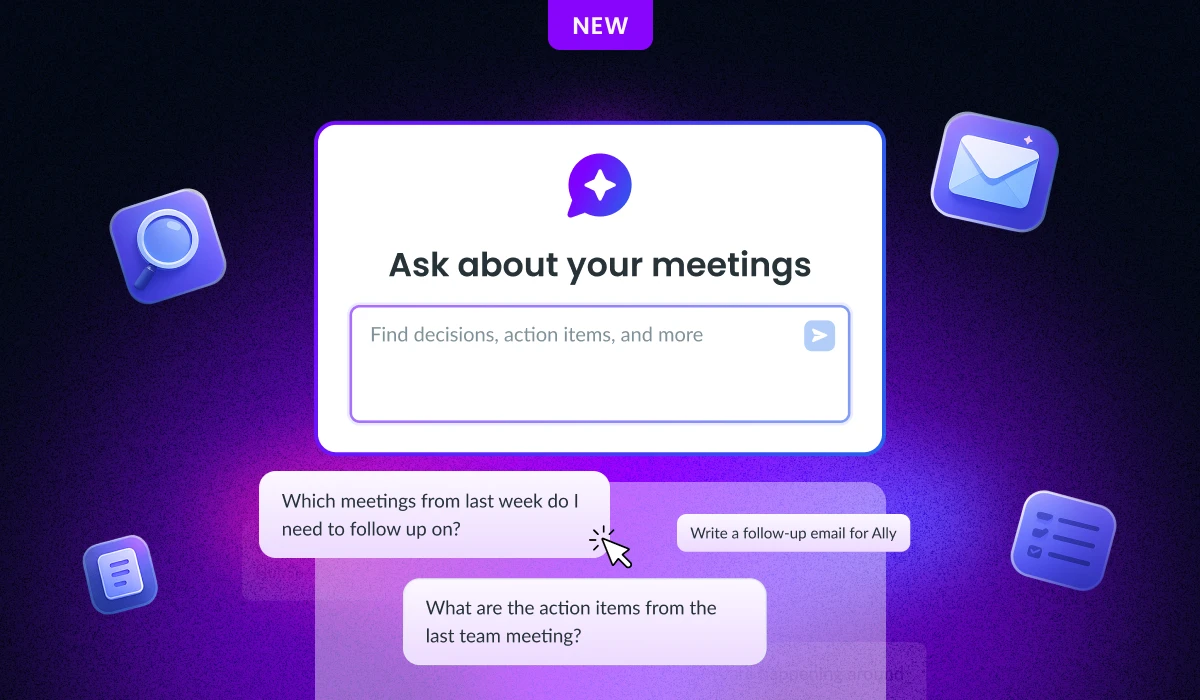
You can now ask Fellow to write it. Describe what the meeting needs to cover, and Fellow creates the agenda items in your note. Talking points, in order, ready for the people walking into the room.
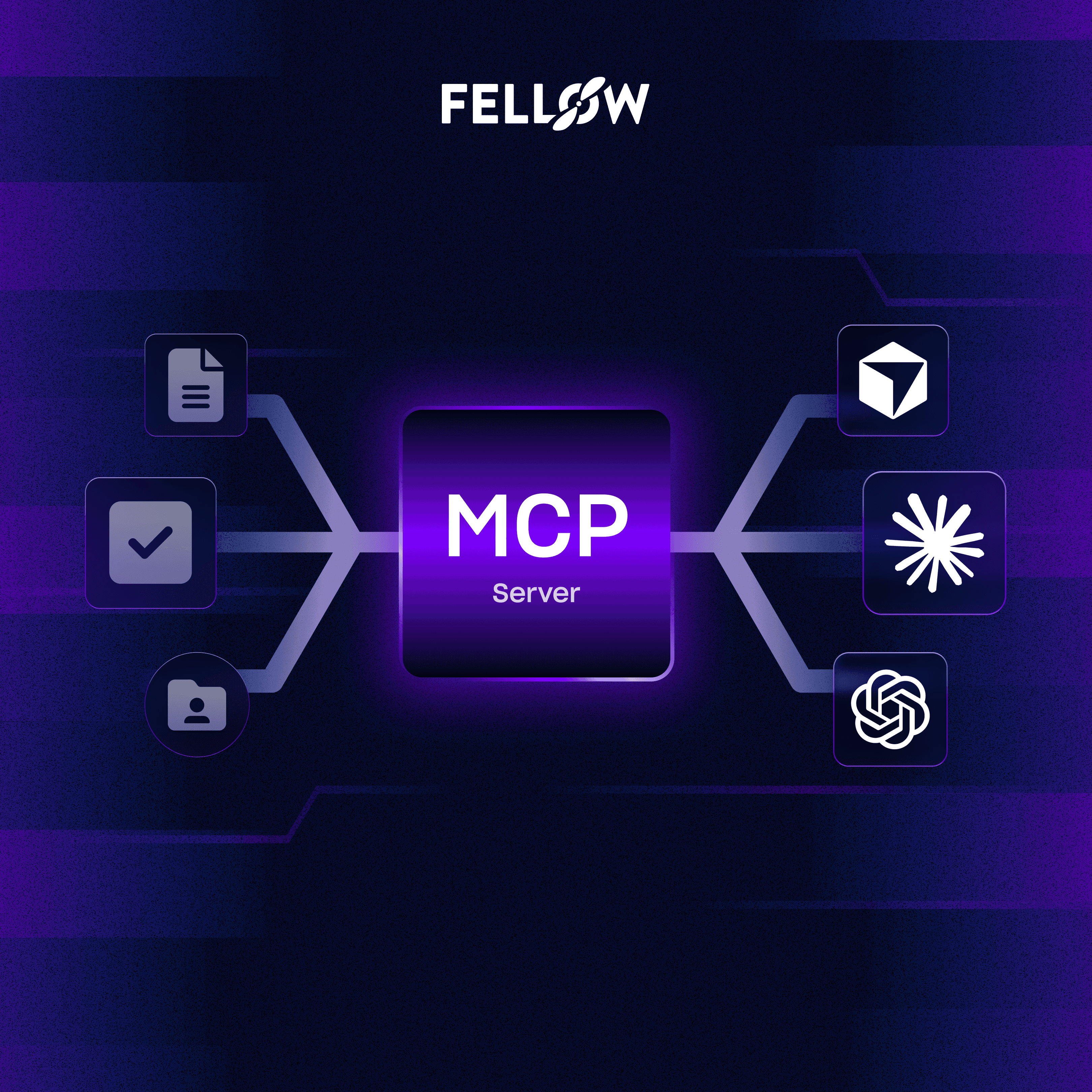
And you do not have to be in Fellow to ask. Fellow runs an MCP server, so if you spend your day in Claude or another AI tool, you can ask there instead, and the items are created in your Fellow note.
Most meeting tool MCP connections are read-only: you can pull your notes into Claude but you cannot write back. Fellow's MCP server creates. Ask for agenda items and they exist in Fellow afterward.
How it works in Fellow
Open the note for an upcoming meeting, open Ask Fellow, and describe what the meeting is for. Something like:
Build an agenda for tomorrow's quarterly review with ACME Corp. Cover the renewal timeline, open support tickets, and their questions about expanding to the sales team.
Fellow writes the items into the agenda. They are ordinary agenda items once they are there, so you keep full control: reorder them, rewrite one, add the thing only you knew about.
There is nothing to set up. If you use Ask Fellow today, you can do this on your next meeting.
How it works from your AI tools
Fellow runs an MCP server. MCP is an open standard that lets AI tools connect to other software and do things in it, not just read from it. Once Fellow is connected, you can ask for an agenda in whatever tool you are already working in and it is created in Fellow.
Claude is the most common one, and it is the setup most people ask about, but the connection is not specific to Claude. Any AI tool that supports MCP connections can do this.
This is the part worth being precise about. A read-only connection can pull your meeting data into an AI tool so you can ask questions about it. Fellow's connection creates. You ask for agenda items and they exist in Fellow afterward, in the note where you need them, ready for whoever else is attending.
In practice that means the AI tool you already have open becomes a place you can prep from. Write a client agenda in the same conversation where you just reviewed the account, and it lands in Fellow.
Connecting Fellow to your AI tools
Setup happens once and takes a few minutes. You can review the full setup instructions in our MCP server help center article.
What to ask for
The prompt does not need to be elaborate, but specifics help. Compare:
Make an agenda for my 1:1.
with:
Build an agenda for my 1:1 with Priya. Cover her promotion case, the handoff from the migration project, and how she is feeling about the new on call rotation.
The second prompt produces an agenda you would actually use, because it contains the things only you knew.
A few patterns that work:
Name the meeting's purpose, not just its title
List the two or three things that must get covered
Say what the meeting should end with, such as a decision or an owner for each item
What this does not do
Fellow does not write agendas on its own. Nothing appears in your notes unless you ask for it. You ask, Fellow creates.
It also does not read minds about context it has no access to. If the reason for the meeting lives in a Slack thread Fellow has not seen, put it in the prompt.
Security and permissions
Asking from another AI tool does not widen what you can reach. Fellow's MCP server operates inside the access you already have, and it is designed to support the permission model your workspace already uses. Notes you cannot open in Fellow do not become reachable because you asked somewhere else.
If your team has questions about how the connection works before you enable it, the setup doc covers it.
Try it on your next meeting
Open your next meeting note, open Ask Fellow, and describe what the meeting needs to cover.
How to ask Fellow for an agenda.
Working from an AI tool? Connect Fellow first.
Frequently asked questions
Record, transcribe and summarize every meeting with the only AI meeting assistant built with privacy and security in mind.