How to Connect Claude to Your Meeting Notes with Fellow's Official Connector
•
8
MIN READ

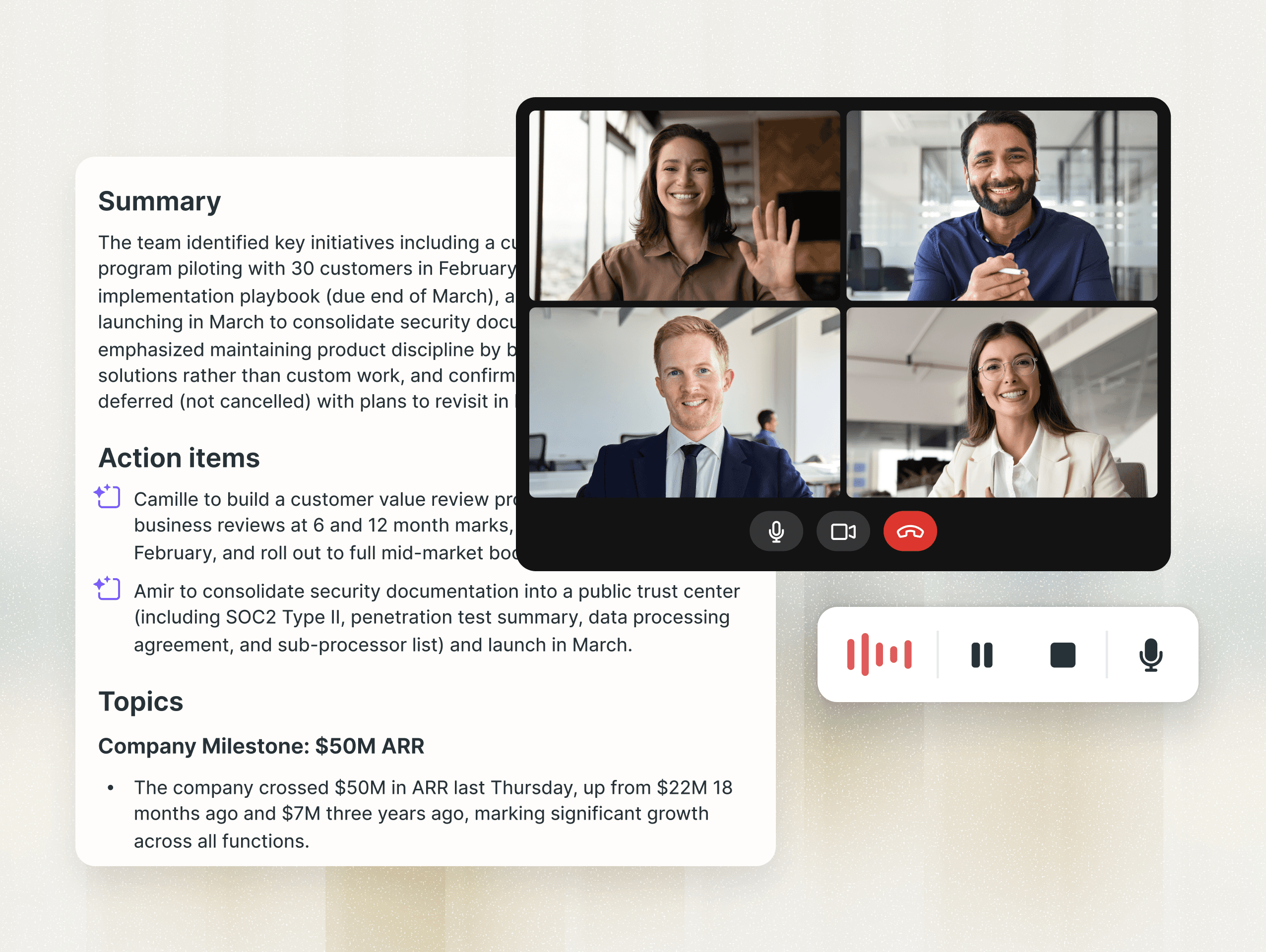
AI Summary by Fellow
You finished a customer call yesterday. Today, you remember someone made an offhand comment about their renewal timeline, but you cannot remember the exact wording or who said it. You could scroll through transcripts, search through notes, or ask a teammate who was on the call. Or you could just ask Claude.
Connecting Claude to your meeting notes turns every conversation you have recorded into something you can query and act on. The fastest way to do this is through Fellow's official Claude connector, which is verified by Anthropic and works without any developer setup. Once it is live, Claude can answer questions about your meetings and also do work in Fellow for you, like drafting tomorrow's agenda from your last three calls.
This guide walks through what the connection does, how to set it up, what you can ask and build once it is connected, and how IT teams can control exactly what Claude is allowed to do.
What it means to connect Claude to your meeting notes
Connecting Claude to your meeting notes gives Claude secure, permission-based access to your meeting transcripts, AI summaries, action items, channels, and agendas, so you can work with your meetings inside any Claude conversation. With Fellow's connector, that access runs in both directions: Claude can retrieve what was said and decided, and it can write and edit meeting agendas and agenda templates in Fellow.
This works through the Model Context Protocol (MCP), an open standard for connecting AI assistants to external data sources and tools. Fellow's MCP Server exposes meeting data to assistants like Claude in a structured, secure way, and only surfaces information you already have permission to see in your Fellow workspace. Editing follows the same rule: Claude can only change notes you can edit yourself, and notes you can only view stay read-only.
If you have ever wished Claude could remember what was said in last week's standup, pull the action items from your last 1-on-1, or turn this week's open items into Monday's agenda, this is the integration that makes it possible.
How to connect Claude to your meeting notes
Setup happens in two stages: an admin enables the connection at the workspace level, and then each user turns it on for themselves. The whole process takes about five minutes.
Step 1: Admin enables MCP in Fellow
A Fellow workspace admin opens Workspace Settings > Developer > MCP and turns on MCP connection. Admins can see every active connection in the workspace under User MCP client connections.
Step 2: Admin adds Fellow to Claude
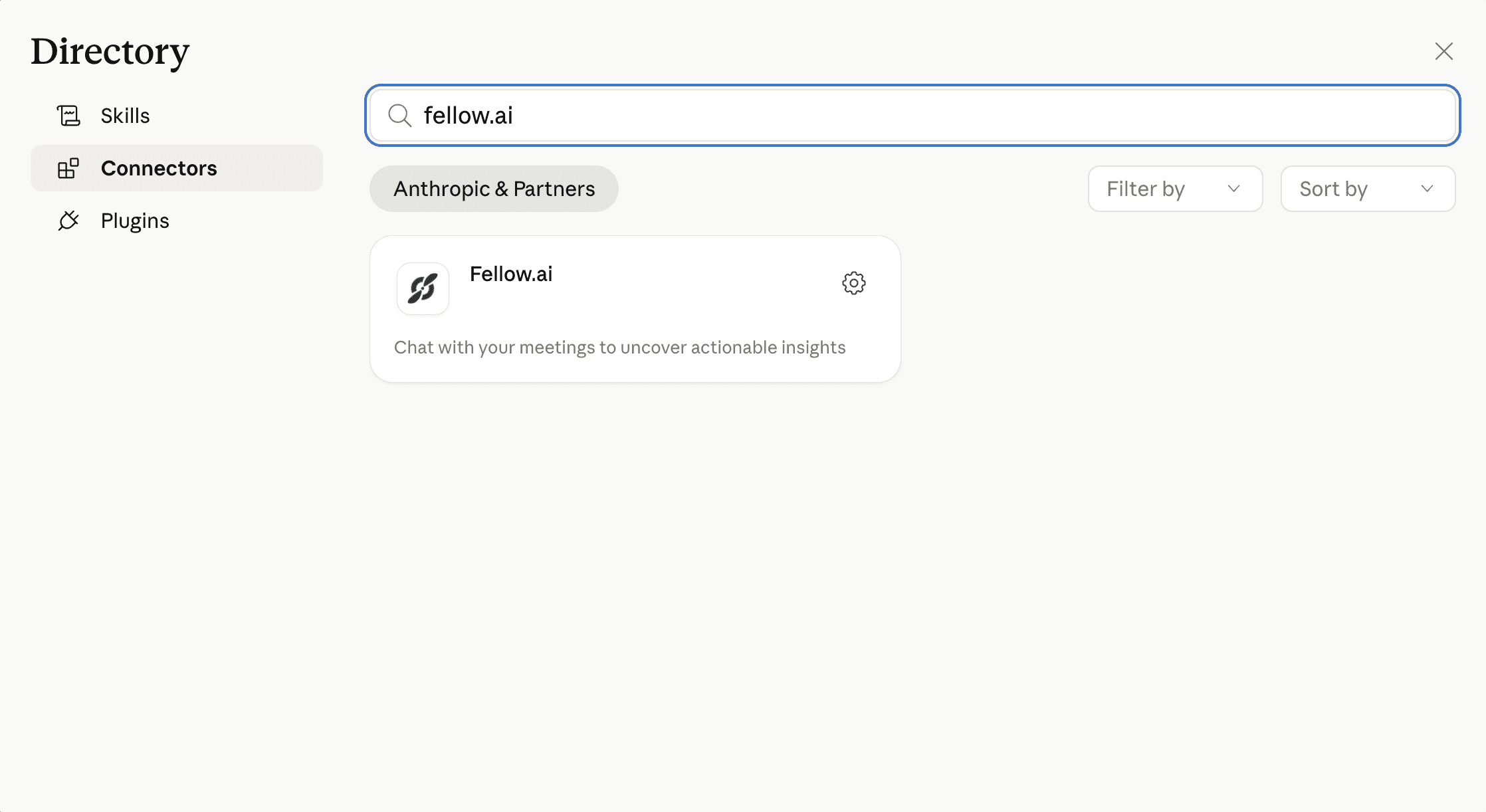
In Claude, an admin opens Settings > Connectors > Browse connectors, searches for Fellow.ai, and clicks Add to your team. Because Fellow is an official, Anthropic-verified connector, there is no URL to paste, no developer mode to enable, and no OAuth client credentials to configure.
Step 3: Each user enables and authenticates
Once those two admin steps are done, every user on the team can:
Click the Connectors icon inside Claude.
Toggle on the Fellow connector.
Authenticate with their Fellow account.
That's it. Claude can now work with your meetings, scoped strictly to the meetings you personally have access to in Fellow.
If you are not yet using a secure AI meeting assistant to capture your conversations, you will need one before Claude has anything to work with. Fellow records meetings across Zoom, Google Meet, Microsoft Teams, in-person conversations, and Slack huddles, with or without a bot, so Claude gets context from every conversation, not just the ones on a single platform.
What Claude can do once Fellow is connected
Fellow's Claude connector includes 18 tools in three groups: reading your meeting data, reading and editing agendas, and managing agenda templates. Which ones your assistant can use depends on how your workspace admin has configured them (covered in the IT section below).
Read and search your meeting data
Claude can search meetings, pull AI summaries and full transcripts, retrieve action items and participants, and list your Fellow channels and their details. Try prompts like:
"In yesterday's call with the design team, what concerns did they raise about the launch timeline?"
"What challenges have come up consistently in our standups this month?"
"What action items was I assigned this week, and which are still open?"
"Summarize the most important decisions from the last three engineering syncs."
"Which meetings in the customer success channel mentioned pricing this quarter?"
Write and edit meeting agendas
Claude can read, write, edit, and rename agendas in Fellow. That means meeting prep no longer stops at a summary in the chat window; Claude puts the result where your team will actually see it.
"Build the agenda for tomorrow's customer sync from our last three calls."
"Add the open items from this week's standup to Monday's agenda."
"Rename next week's leadership note to include the Q4 planning focus."
Because every agenda Claude writes is grounded in what was actually said in past meetings, you walk into the next conversation with the unresolved threads already on the page.
Create and manage agenda templates
Claude can search, read, create, edit, apply, and delete agenda templates, and set a template as the default for a meeting series so every future note starts from it.
"Make an agenda template for our QBRs and set it as my default."
"Apply the 1-on-1 template to next week's meeting with Priya."
"Find our onboarding template and add a section for security training."
Templates Claude creates are personal unless you ask for a workspace-wide one.
Combine Fellow with Claude's other connectors
Fellow also works alongside Claude's other connectors. You can ask Claude to compare what was discussed in a planning meeting against your Linear tickets, surface the Google Drive docs related to a decision, or draft a follow-up email in Gmail based on the sales call you just finished. Your meetings become one input among many, which is what makes Claude useful for real knowledge work.
How Fellow's connector differs from other meeting assistants in Claude
Several AI meeting assistants now have official connectors in Claude's directory, including Fireflies, Granola, Otter, and Fathom. Fellow's stands apart in three ways.
Claude can act, not just read. As of the time we wrote this article, Otter's and Granola's Claude connectors are read-only: Claude can search and retrieve, but cannot change anything. Fellow's lets Claude write and edit agendas and create, apply, and manage agenda templates directly in Fellow.
Full meeting history, not a rolling window. On Granola's free plan, its connector only reaches the last 30 days of notes and excludes transcripts. Fellow's connector covers every meeting you can see in Fellow.
Capture breadth. Fellow records Zoom, Google Meet, Microsoft Teams, in-person meetings, and Slack huddles, with or without a bot, so Claude has the widest pool of meeting context to draw from.
What enterprise IT teams need to know
For IT, security, and compliance leaders evaluating this connection, five things matter.
Permissions inherit from Fellow
Claude cannot see any meeting the authenticating user cannot already see in Fellow, and it cannot edit any note the user cannot already edit. There is no escalation, no broader visibility, and no shared pool. The connector also cannot delete meetings or share Fellow data.
Authentication uses per-user OAuth
Connections are established through OAuth, not shared credentials. Each user authenticates individually, and connections can be revoked at any time. Users can manage their own connections in User Settings > API & MCP Connections, and admins can review every connection under User MCP client connections.
Admins control every tool individually
Under Workspace Settings > Developer > MCP tools, every tool has its own switch. Admins can allow read tools while keeping agenda editing off, or open everything up. A workspace that wants read-only access can have it: read-only is now a policy choice, not a product limit.
The Allow new tools by default setting decides what happens when Fellow ships a new tool. Leave it on to allow new tools automatically, or turn it off to keep them unavailable until an admin enables them. Every change to a tool's status is recorded in the workspace audit log, including who made it.
Write access requires explicit consent
Editing tools are never included by default. They are only granted when the Claude client requests them and the user explicitly approves, so no one ends up with write access they did not choose.
Fellow's security posture carries over
Fellow is SOC 2 Type II certified, GDPR and HIPAA compliant, and never trains AI models on customer data, on any plan.
The same privacy controls that govern the rest of your workspace apply to everything Claude retrieves: access permissioning by channel, configurable data retention including a zero-day option, transcript redaction, password-protected meeting recaps, and consent capture for auto-recorded meetings.
Firms in private equity, hedge funds, and investment banking can also use Fellow's compliance portal to search, review, flag, and audit recorded meetings across the workspace, and should confirm with their own counsel how these options map to their specific requirements.
Frequently asked questions
How do I connect Claude to my meeting notes?
To connect Claude to your meeting notes, a Fellow workspace admin turns on MCP under Workspace Settings > Developer > MCP, then adds the Fellow.ai connector from Claude's connector directory with "Add to your team." Each user then toggles the Fellow connector on in Claude and signs in with their Fellow account. Setup takes about five minutes and requires no developer configuration.
Can Claude edit my meeting agendas in Fellow?
Yes. Fellow's Claude connector lets Claude read, write, edit, and rename meeting agendas, and create, apply, and manage agenda templates. Claude can only edit notes the user already has permission to edit in Fellow. Editing tools are never granted by default: the user must approve them, and workspace admins can turn them off entirely.
Is it secure to connect Claude to my meeting notes?
Yes. Fellow's Claude connector uses per-user OAuth, inherits every existing Fellow permission for both reading and editing, and cannot delete meetings or share Fellow data. Admins control each tool individually, and every change is recorded in the workspace audit log. Fellow is SOC 2 Type II certified, GDPR and HIPAA compliant, and never trains AI models on customer data.
Can admins limit Claude to read-only access?
Yes. Under Workspace Settings > Developer > MCP tools, Fellow admins can switch each tool on or off, for example allowing search and summary tools while disabling agenda editing. The "Allow new tools by default" setting controls whether newly released tools become available automatically or stay off until an admin enables them.
What is the best AI meeting assistant to use with Claude?
Fellow is a strong choice for teams that want Claude to both understand and act on their meetings. Fellow's connector covers every meeting a user can see in Fellow, lets Claude write agendas and manage templates, and draws on capture across Zoom, Google Meet, Microsoft Teams, in-person meetings, and Slack huddles. Fellow also adds enterprise controls like per-tool admin permissions and a zero-training policy.
Do I need a developer to connect Claude to Fellow?
No. Fellow is an official, Anthropic-verified connector in Claude's directory, so there is no server URL to paste, no developer mode, and no OAuth client setup. A workspace admin enables MCP in Fellow and adds the connector in Claude, then each user turns it on with one click and signs in with their Fellow account.
Conclusion
Connecting Claude to Fellow turns your meeting history into something Claude can search, reason over, and build on, from recalling a single comment to writing next week's agenda. Admins decide exactly which of those capabilities their workspace uses, and every meeting Claude touches stays governed by the same permissions and security controls as the rest of Fellow.
Record, transcribe and summarize every meeting with the only AI meeting assistant built with privacy and security in mind.