How to Record on Google Meet [Updated for 2026]
•
6
MIN READ

AI Summary by Fellow
In 2026, "recording" a meeting is no longer about saving a video file, it’s about capturing a searchable, actionable knowledge base that you can easily reference and share with coworkers and clients.
Whether you’re using Google’s native Gemini tools or an advanced AI meeting assistant like Fellow, here is the definitive guide to recording on Google Meet.
1. The native way: Recording with Google Gemini
Google has integrated "Take Notes for Me" directly into the UI. This is best for quick, internal syncs.
How to record in Google Meet
Inside the Meet, click the Gemini Sparkle icon at the top right and select Start taking notes.
To customize the length of your meeting notes, click More settings, and under "Notes length," select "Standard" or "Longer."
To control who can read the notes, click the dropdown menu under "send notes to," then select from all guests on the calendar invite, invited guests in your organization, or hosts and co-hosts only. The people you share notes with will receive an email with access to the generated notes doc.

Where the recording is stored after the meeting
After the meeting, the meeting notes document is stored in the meeting organizer’s Drive folder.
For every recording, Google generates a single "Smart-Doc" that embeds the video player alongside a timestamped transcript, a list of mentioned links, and a generated summary.
2. The specialized way: Recording with an AI meeting assistant
For teams that view meetings as a core part of their "Knowledge Workflow," a specialized tool like Fellow is the gold standard. While Gemini records the words, Fellow manages the entire meeting lifecycle, from the first agenda item to the final project update.
Pre-meeting preparation: Fellow automatically generates "Pre-Meeting Briefs" based on previous recordings, ensuring everyone is caught up before the "Record" button is even pressed.
Centralized meeting agendas: Unlike native recording, Fellow links your video to a collaborative, living agenda. You can write talking points in advance and see them side-by-side with your Google Meet window.
Chrome Extension: Fellow’s Chrome extension acts as a persistent AI notepad. Even while the meeting is being recorded, you can manually "star" moments or add private notes that are instantly synced to the specific timestamp in the video.
Systems of record integration: This is the "Fellow Advantage." While Google stays within Google, Fellow bridges the gap to your entire tech stack. Your AI meeting notes aren't just text, they are actionable data points that sync directly with your CRMs (Salesforce, HubSpot), Project Management tools (Jira, Asana), and Automation tools (Zapier, n8n).
Where the recording is stored after the meeting
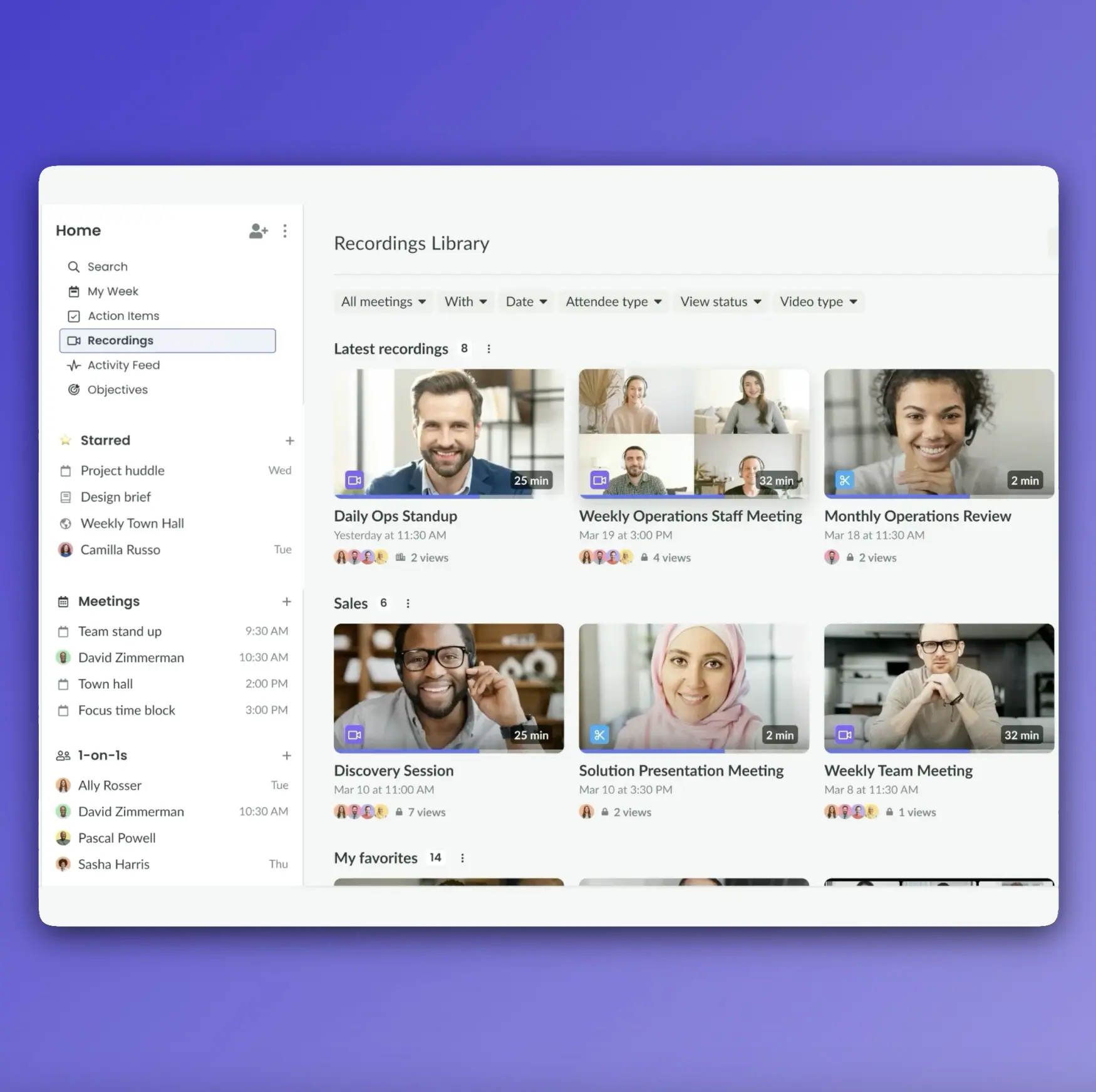
Fellow AI meeting recordings, recaps and notes are stored in one centralized recording library where you can create custom channels and auto-publish rules to control what can be accessed by whom.
Fellow channels have their own access permissions and auto publish rules so they can be as private or as public and you need them to be.
You can also filter through your meeting recordings with specific filters like participation, date, type, or company, or create custom trackers to see your meeting recordings by concept, sentiment, or keyword.
Fellow organizes meeting notes, action items, and follow-ups in a structured, collaborative workspace. Unlike Google Meet "take notes for me", it’s built for Enterprise organizations who want to turn meetings into data that can be easily integrated into all their systems of record, while maintaining strict security standards.
Frequently Asked Questions
How do I record a Google Meet without an AI bot joining the call?
In 2026, you can record "botlessly" by utilizing Google’s native Gemini integration or Fellow’s botless recording. These methods capture high-fidelity audio and video silently in the background. This removes the need for a visible "Bot" participant, ensuring a professional, distraction-free interface for all attendees while still capturing every detail.
Where are Google Meet AI notes and video recordings stored?
Native Gemini recordings are automatically archived in your Google Drive within a specialized folder titled "Meet AI Vault." For those using a specialized meeting assistant like Fellow, your recordings and AI-generated notes are stored in a centralized, searchable recordings library. From there, they can be automatically synced to your company’s knowledge hubs, such as Notion, Confluence, or Slack.
Does Google Meet support live translation and AI dubbing in recordings?
Yes, the 2026 version of Google Meet includes Live Dubbing and Multilingual Transcription. Gemini can record a session in one language and instantly generate a transcript in another. Furthermore, it can create a synthetic audio track, allowing viewers to watch the recording with a voice-over in their native language while preserving the original speaker's tone and emotion.
How can I automatically sync meeting action items to tools like Jira or Asana?
To bridge the gap between talk and action, you should use a specialized assistant like Fellow. Its AI engine detects "intent" during the conversation to identify commitments. It then automatically pushes these action items into project management tools like Jira, Asana, or Monday.com, complete with a direct link to the specific video timestamp where the task was discussed.
What are the security and privacy requirements for AI recording in 2026?
Recording compliance now centers on Automated Consent Management. Leading tools like Fellow offer "Redaction," which allows users to remove sensitive information after the recording process.
Record, transcribe and summarize every meeting with the only AI meeting assistant built with privacy and security in mind.